Welcome to GTS Trading 👋
New here and it feels like a lot? It isn't. Everything you do follows one simple chain: write a condition → wrap it in a strategy → get alerted or trade it → watch it run. This guide answers the exact questions in the order most people ask them.
Tip: use the table of contents on the left to jump to any question. Click a question to expand its answer.
★ Two 2-minute recipes
The fastest way to "get" the platform: do one of these start-to-finish. Each takes about two minutes — no real funds at risk, everything runs on paper.
- Get your expression. Builder: type the condition (
RSI(14) < 30 5min) or describe it in plain English and let AI build it — then Save. - Apply it to a strategy. Builder → Strategies → New: attach your expression to the Open handler, set Units / Stop-Loss / Take-Profit, Save.
- Test it on history. History Requests: pick one or more strategies, set the date range, name the request, Run — then read the report (trades, win rate, PnL).
- Run it live (paper). My Strategies: pick your strategy → Deploy to server. Then start the server and open Monitor — watch quotes tick in, positions open and PnL move in real time.
- Pick a strategy. History Requests → Strategies → Community: browse the library, open one you like, Import it.
- Set the run. Pick one or more strategies, set the date range (e.g. the last 3 months) and give the request a name.
- Run it. Submit and watch the progress — longer ranges take a few minutes.
- Read the results. Open the run's report: trades, win rate, profit factor, drawdown. Like it? Deploy the same strategy to paper from the Monitor and watch it live.
1 Getting started
Read this section first — it removes 90% of the confusion. The three words below (expression, strategy, handler) are the whole mental model.
Q What is this app and what can I do here? ▶
GTS Trading lets you describe market conditions (e.g. "RSI on the 1h is below 30") and then choose what happens when that condition becomes true: get a signal/alert, or open and close positions on a connected exchange (paper or real).
You do all of this without writing code — though you can bring your own C++ or Lua if you want. The main areas, from the top nav:
| Area | What it's for |
|---|---|
| Builder | Create expressions, wire strategy handlers, and generate mass/permutation strategy sets. The left library gives access to Mine plus 74k+ Community expressions in the GUI, also accessible through the API for agents. |
| My Expressions | Your saved conditions library. |
| My Strategies | Strategies you've assembled and can deploy. |
| Signal Monitor | Database-backed tables/feed capturing every live alert fire in the system: expression, strategy, symbol, time, delivery status, and channel results. |
| History Requests | Gateway for history runs: select one or many strategies, include permutation packs, set plan/range options, deploy the relevant strategy definitions into the history runtime, run them, and review reports. |
| Monitor | Deep operational view of running strategies & positions. |
| Charts / SEC Edgar | Price charts and company filings for research. |
| Plans / Settings / API Docs | Billing, channel/provider configuration, API keys for agentic access, runtime risk limits, and programmatic access docs. |
 🖼️Top navigation barscreenshot: full-width nav — Builder · My Expressions · My Strategies · …
Q What's the difference between an Expression, a Strategy, and a Handler? ▶
This is the thing to understand. They stack:
| Term | Plain meaning | Example |
|---|---|---|
| Expression | A single condition that is either true or false right now. | RSI(14) < 30 |
| Handler | A rule group that watches its inner expression list and relation, then emits one configured signal/action: open buy, open sell, close buy, close sell, or alert-only/no trade. Trading settings such as size, TP, and SL apply only to trading handlers. | "RSI<30 AND spread OK → alert only" or "RSI<30 → open buy" |
| Strategy | A deployable per-symbol runtime/reporting entity: it contains a set of handlers plus the user-set trading and risk parameters. Handlers emit signals; the strategy applies the relevant logic: units, max open positions, SL/TP, trailing, hedging, limits, dynamic close/report behavior, and paper/live runtime settings. | "On EURUSD 1h, open buy handler on RSI<30, close buy handler on RSI>70, max 2 positions, 10 units, SL/TP, and trailing rules" |
Q What's the typical flow from start to finish? (the 60-second tour) ▶
- In Builder → Expression Builder, type a condition in plain English and hit Parse. Save it.
- Switch to Builder → Strategy & Handler. Pick your expression as the entry condition, set the action (alert or open position).
- Decide: do you just want to be alerted, or do you want it to open/close positions?
- Deploy it. Start on paper/demo until you trust it.
- Open Monitor / Signal Monitor to watch fires and positions live.
Q Alerts vs trades — what actually happens when a signal fires? ▶
- Alert: you get notified (in Signal Monitor and any channels you've set up). Nothing is bought or sold.
- Trade (paper): the strategy opens/closes a position on the GTS paper-trading account — a simulated account GTS manages. This is the default and needs no broker.
2 Expressions (the Builder)
An expression is one true/false condition. There are seven ways to make one — pick whichever feels easiest. They all produce the same thing. Compare all seven routes ↓
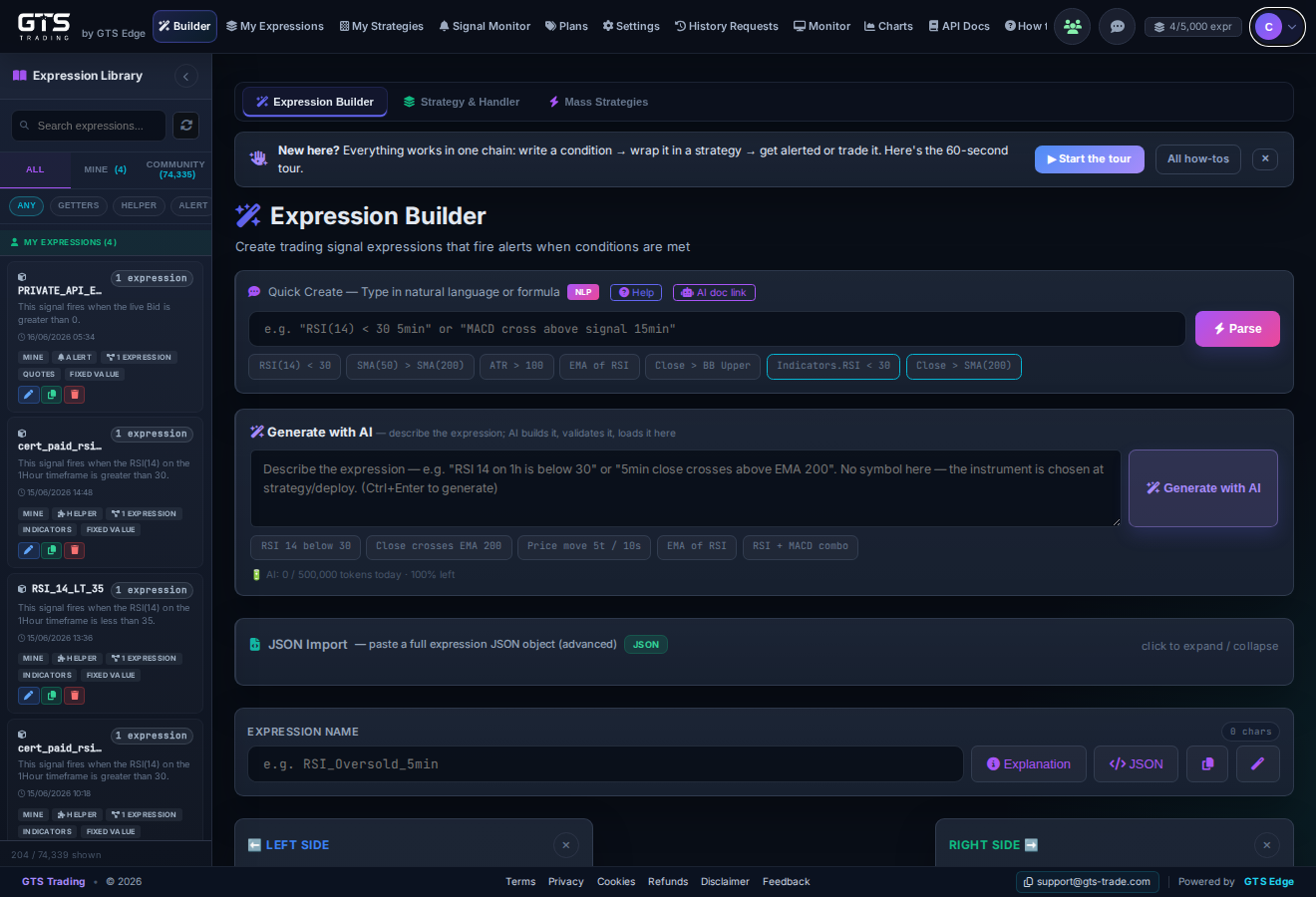 🖼️Expression Builder — full screenscreenshot: Quick Create box + Generate with AI + JSON Import, left expression list
Q How do I create an expression? ▶
There are seven ways in, and they all end at the same place — a saved expression in My Expressions. Pick by how you like to work, not by what the expression does: every route reaches the full operand surface.
| Route | Use it when | AI tokens |
|---|---|---|
| Builder selection — §manual | You want full control: pick the left operand type, the operator, and the right operand from the type grid. | Free |
| Quick Template — §simple | Standard indicator check. Pick the indicator, fill the params, Save. | Free |
| Quick Create — §simple | You'd rather type it in plain English. Deterministic parser, no model involved. Works on the Free plan. | Free |
| Generate with AI — §ai | Free-form description, or logic Quick Create won't parse. | Spends |
| JSON Import ADVANCED — §json | Deeply nested logic, or JSON written in your own ChatGPT/Claude and pasted back. | Free |
| Community import — §community | Someone already built it. 74k+ shared expressions — import and edit freely. | Free |
| Agent / API — §api | Programmatic or agent-driven creation with your API key. | Free |
Q Show me one expression built all 7 ways ▶
Worked example: "EMA(50) was below EMA(200) on the previous bar, and is above it now" — an up-cross. It's a good test case because it is a two-bar event, so it can't live in a single condition. Every route below produces the same three expressions.
1 · Quick Create — the fastest, and free
Type it and press Parse:
EMA(50) crossed EMA(200) 1HourThe parser auto-expands the cross into all three pieces and loads the combiner for review. Clicking Save creates the two legs at the same time. Names are generated for you: EMA_50_below_EMA_200_prev, EMA_50_above_EMA_200_now, EMA_50_cross_up_EMA_200. Use crossed below for the down-cross.
2 · Builder selection — three passes
- Leg 1: left = Indicators → EMA, period 50, frame 1Hour, History = 1. Operator
<. Right = EMA(200), 1Hour, History = 1. Save asEMA_50_below_EMA_200_prev. - Leg 2: same two operands with History = 0, operator
>. Save asEMA_50_above_EMA_200_now. - Combiner: left = User Expression →
..._prev, operatorAND, right = User Expression →..._now. Save.
EMA(50)[1] against a live EMA(200) fires false crosses whenever the slow line moves. Against a fixed number instead (RSI(14) crossed 30) only the indicator needs the index; a constant reads the same on every bar. Quick Create handles both cases for you.3 · Quick Template — not usable here
Templates cover a single indicator against a value. A two-bar cross is out of scope — use route 1 or 2. (Templates remain the fastest path for things like RSI(14) < 30.)
4 · Generate with AI — describe it
EMA 50 crosses above EMA 200 on the 1 hour, as three expressions:
previous-bar leg, current-bar leg, and an AND combiner
Spends tokens; no Free-plan allowance. Say "as three expressions" or the model may try to emit one.
5 · JSON Import — full control
Leg 1, with both operands one bar back:
{
  "ExpressionName": "EMA_50_below_EMA_200_prev",
  "Expression_left_ElementType": "GTSIndicators",
  "Expression_left_ElementValue": "EMA",
  "Expression_left_Frame": "1Hour",
  "Expression_left_historyIndex": 1,
  "Expression_left_UseHistoryElem": true,
  "Expression_left_collectionSize": 2,
  "Expression_left_operation": "<",
  "Expression_right_ElementType": "GTSIndicators",
  "Expression_right_ElementValue": "EMA",
  "Expression_right_Frame": "1Hour",
  "Expression_right_historyIndex": 1
}
Leg 2 is the same with historyIndex dropped and operation flipped to >. The combiner references both by name:
{
  "ExpressionName": "EMA_50_cross_up_EMA_200",
  "Expression_left_ElementType": "UserExpression",
  "Expression_left_ElementValue": "EMA_50_below_EMA_200_prev",
  "Expression_left_operation": "AND",
  "Expression_right_ElementType": "UserExpression",
  "Expression_right_ElementValue": "EMA_50_above_EMA_200_now"
}
collectionSize is historyIndex + 1. Free — no tokens, whether you write the JSON yourself or have an external model write it.
6 · Community import — already built
Search the Community tab for EMA_CROSS_UP. EMA_CROSS_UP_CORE is exactly this pattern; EMA_CROSS_UP_STRICT adds a separation filter (EMA_DIFF_NOW_ABS > 0.0002) so tiny touches don't count as a cross. Import and edit freely.
7 · Agent / API — programmatic
POST /api/v1/expressions/validate   # optional dry run
POST /api/v1/expressions            # leg 1
POST /api/v1/expressions            # leg 2
POST /api/v1/expressions            # combiner (references both by name)
Same JSON as route 5, one call per expression, legs before the combiner. See §API.
EMA(50) > EMA(200) + 2 will not parse. Build it bottom-up: an ABS difference expression, then a > FixedVal check, then AND it onto the cross. That is exactly how EMA_CROSS_UP_STRICT is assembled in route 6.Q How do I build a simple expression in plain English? ▶
The quickest way is a Quick Template: pick an indicator, fill in the params, and Save — done. Prefer to type it out in plain English? Use the Quick Create box at the top of the Expression Builder:
- Type the condition the way you'd say it:
RSI(14) < 30 5minorMACD cross above signal 15min. - Click ⚡ Parse.
- The builder fills in below. Give it a name and Save.
Don't know where to start? Click one of the example chips under the box — RSI(14) < 30, SMA(50) > SMA(200) Daily, Close > BBANDS(20).Upper 1Hour — to load it instantly.
What the quick parser understands: LEFT OPERATOR RIGHT with an optional timeframe/symbol — e.g. RSI(14) < 30 5min, RSI(14) crossed 30, MACD cross above signal 15min, RSI(14) < 30 and balance > 100 — or a unary signal: a single operand on its own, like bullish engulfing 5min, hammer 15min, KalmanTrendFilter.trend — or a bare indicator as a value getter, e.g. RSI(14) 5min. Do not write a symbol — expressions on this site carry none; the strategy binds the instrument at deploy. Indicator parameters always need parentheses: RSI(14) parses, RSI 14 doesn't. Wordier or calculated conditions need AI Generate, formula blocks, or JSON. For example, a same-bar 5-minute +2% candle body means 5Min Close >= Open * 1.02 — current 5Min close compared to the same bar's open.
The basic shape is LEFT OPERATOR RIGHT with an optional timeframe (no symbol — on the trading side a symbol is applied later, at the strategy) — but Quick Create handles more than that:
- Unary (getter) — a single value on its own, no operator, e.g.
RSI(14)orDonchian upper. (A comparison likebullish engulfing > 0is binary — it has two sides.) - Compound — type the whole condition and it auto-builds the legs plus combiner:
RSI(14) < 30 and balance > 100, 3+ terms, mixedAND/ORwith parentheses ((a OR b) AND c), and crossings (RSI(14) crossed 30). Intermediate steps are created automatically on Save. - Saved-expression refs — reuse a saved expression by name as an operand:
My_SignalA AND My_SignalB.
Prefer plain English? The Generate with AI box turns a free-form description into a validated expression. Full syntax reference: Quick Create — NLP Reference.
 🖼️Quick Create box with example chipsscreenshot: input + Parse + chips row
Q How do I let AI build the expression for me? ▶
Use the Generate with AI box. Describe what you want in everyday language and the AI writes, validates, and loads the expression for you.
- Type a description: "EURUSD when RSI 14 on 1h is below 30" or "gold 5min close crosses above EMA 200".
- Press Generate with AI (or Ctrl+Enter).
- Review what it loaded, then Save.
0 / 1,000,000 tokens used · 100% left on the max plan). Every paid plan includes a daily token allowance; the Free plan has none (use Quick Create instead). Run out? Wait for the daily reset or upgrade to a higher plan. See §6 plans & tokens.Q How do I import an expression as JSON, or from ChatGPT / Claude? ▶
Use JSON Import ADVANCED at the bottom of the Expression Builder.
- Have a complete expression JSON object? Paste it in the box and hit Import — it loads straight into the builder.
- Don't want to hand-write JSON? Click Copy AI Schema Link, paste it into ChatGPT / Claude / Gemini, and ask the model to generate the expression JSON for you.
- Paste the model's result back here and Import.
Q How do I build an expression by hand (visual builder)? ▶
Below the Quick Create methods is the visual operand builder for full control:
- Set the left operand (e.g. an indicator, price, or account value).
- Pick the operator (
>,<, cross above, etc.). - Set the right operand (another indicator, or a fixed value).
- Choose the symbol and timeframe, then Save.
 🖼️Visual operand builderscreenshot: left panel / operator / right panel / timeframe
Q How do I add an expression from the Community? ▶
There are 74k+ shared Community expressions you can reuse from the GUI library panel, alongside your own Mine expressions. Agents can access the same expression library through the API.
- In the left library panel, click the Community tab.
- Search or browse, then click an expression to preview it.
- Use Import / Copy to mine — it's added to My Expressions so you can edit it freely.
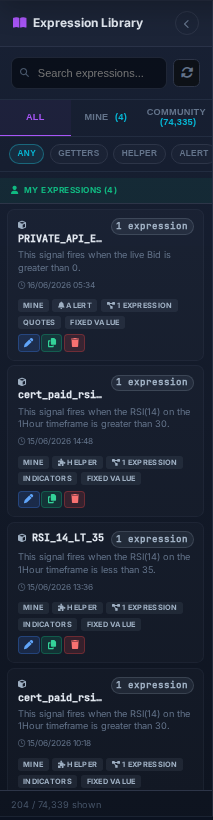 🖼️Community tab in the libraryscreenshot: ALL / MINE / COMMUNITY tabs + count
Q What's the difference between All / Mine / Community / Old? ▶
- All — everything visible to you.
- Mine — only expressions you created or imported.
- Community — shared by other users; import to reuse.
- Old — archived/previous versions (e.g. items moved aside on a plan downgrade).
The filter chips ANY HELPER ALERT narrow the list by role (next question).
Q What's a Helper expression vs an Alert expression? ▶
- ALERT Alert expression — a complete condition meant to fire on its own (notify you / trigger a handler).
- HELPER Helper expression — a reusable building block you reference inside bigger expressions. Helpers usually don't fire by themselves; they feed the ones that do.
Q What expression types exist? ▶
GTS has 35+ operand types — far more than the basics. Each is an ElementType plus that type's required fields, producing a value or a boolean event you compare. Grouped by family:
| Family | Types (ElementType) | What they read |
|---|---|---|
| Indicators | TA_Indicators, ExtendedIndicators | RSI, SMA, MACD, ATR… plus advanced tools (FVG, Order Block, SMC/ICT, adaptive & ML/regime) |
| Price & bars | OHLC_Bar, Quotes, RenkoBar, HeikinAshiBar, TickRevBar, TicksPerPeriod | Open/High/Low/Close/volume, bid/ask, and alternative bar types |
| Patterns | TA_CandlePatterns, PricePattern, ABCPattern, FibonnaciBar, PivotObject | Candlestick & price-structure events, pivots, Fibonacci, ABC waves |
| Trend & channels | TrendObject, ChannelObject, PriceMoveObject, ConsensusScore | Trend side/length/speed, channel bounds, price moves, multi-signal consensus |
| Account & positions | AccountObject, AccFrameObject, RollingAccFrameObject, LastOpenPositionObject, ClosePositionObject, StrategyOpenPositions | Balance, equity, used margin, open P&L, and open/closed position details |
| Fundamentals | Fundamental | EDGAR financials — revenue, EPS, ratios… |
| Date & time | DateValue, HourValue | A date, or the hour of day |
| Fixed values | FixedVal, SideValue | A fixed number, or a trade direction (long / short) |
| Reference data | Symbol | Symbol context — tick size, margin, contract specs, and other instrument reference data |
| Reusable & composition | UserExpression, StateMachineExpression, CollectionTransform, HistValue, ExpressionMeta | Any saved expression is reusable — reference it by name as a UserExpression building block. Plus multi-step state machines, history lookback & transforms |
| Code (Private) | LuaScriptOperand (Lua), CustomizedUserOperand (C++) | Inject your own Lua or C++ operand — private servers only (2 code-injection types) |
> 0 (not == 100), and a trend is required.PriceMoveObject — it measures a move's width in ticks and its speed in ticks/second.
Tick count ("100 quote updates arrived in 2 minutes") is TicksPerPeriod — market activity/liquidity, not distance.
Same words, different operands — if you want movement, you want Price Move. Price move can be started from Quick Create with the full phrase price moves 100 ticks up within 120 sec (width, direction and time limit are prefilled; the builder then asks for the source expression). TicksPerPeriod is built in the builder or via JSON Import. price move is a unary operand whose width and time limit are parameters (Min Width ticks + Max Seconds + Direction, over a mandatory source expression) rather than comparisons you type. See the Price Move reference for the exact fields.UserExpression) inside a bigger expression. That's how small helpers compose upward into full alert/strategy logic.GET /api/v1/expression-schema?type=<ElementType> returns that type's exact required fields and a runnable example (add ?format=json for structured output); POST /api/v1/expressions/validate checks any JSON against the live validator before saving; POST /api/v1/expressions pushes it. The schema endpoint is the authoritative, always-current list of every type — see Control via API.Q Can an expression return a value instead of true/false? (getters) ▶
Yes. Not every expression is a condition. An expression is one of two things:
| Kind | How you build it | Returns |
|---|---|---|
| Condition (boolean) | Two sides with a comparison or logic operator — > < == != >= <=, AND, OR, crossed | true / false — this is what an alert or handler fires on |
| Getter (value) | No operator at all — just a left operand. Or two sides with an arithmetic operator: - + * / | a number — a building block, never fires by itself |
In the builder, leave the operator unselected and the preview flips to "Unary getter" — "works as a getter without a binary operator". Save it and it's a named, reusable value. In Quick Create, just type the operand alone: RSI(14) 5min, Donchian upper.
What consumes a getter
Once saved, reference it by name as a User Expression. Three things can consume it:
- A condition — put a threshold on it:
UserExpression.My_RSI_1h < 30. Value in, boolean out. - Another getter — combine two values arithmetically:
UserExpression.EMA_50 - UserExpression.EMA_200. Value in, value out — still a getter, so it chains as deep as you need. - A unary operation — wrap it: ABS, NOT, Max/Min over N, History (N bars back), Z-Score, Momentum, Accel, Pct Rank, Dir Strength. Most return a value;
NOTreturns a boolean.
UserExpression references one directly; PriceMoveObject and ExpressionMeta each take a mandatory source expression; CollectionTransform takes a SOURCE (and SOURCE B); ConsensusScore, StateMachineExpression and HistValue take two or more children. Any of the unary operations (ABS, NOT, Max, Min, History, Z-Score, Momentum, Accel, Pct Rank, Dir Strength) can wrap those too. So a unary can sit several levels deep in a chain. Anyone who tells you "a GTS expression is binary" is wrong — see the expression model.A real chain, bottom to top
These ship in the Community library — search EMA_DIFF or EMA_CROSS_UP:
| Expression | Built from | Returns |
|---|---|---|
EMA_1H_50_GETTER_H1 | EMA(50) 1Hour, no operator | value |
EMA_1H_200_GETTER_H1 | EMA(200) 1Hour, no operator | value |
EMA_DIFF_H1_ABS | the two above with -, ABS applied | value — a getter made of getters |
EMA_DIFF_H1_ABS_GT_0_0002 | that > FixedVal 0.0002 | boolean — first condition in the chain |
EMA_CROSS_UP_STRICT | the cross AND that | boolean — the one you attach to an alert |
EMA(50) > EMA(200) + 2 won't parse) — you express it by building the difference as a getter, then comparing that getter to a number. Three small expressions instead of one impossible line.Q How do I compose a complex expression? ▶
Build bottom-up:
- Define the atomic value getters first as named, reusable helpers (e.g. a named "RSI 1h" or "ATR band").
- Compose the upper levels on top by referencing those helpers instead of re-typing them.
- Combine with
AND/ORto express multi-condition logic.
Q How do I view / inspect an expression (and see its JSON)? ▶
Click an expression in the left library to open the Expression Viewer. It shows the full definition — what it reads, the operator, the symbol/timeframe, and any helpers it references.
- Copy JSON — copy the raw expression JSON (useful to share, version, or feed to an AI model).
- Export — save the definition out (see Share / export).
- Site link — get a link back to the expression.
 🖼️Expression Viewer with Copy JSONscreenshot: viewer modal — definition + Copy JSON / Export buttons
Q How do I test an expression's live value before I save it? ▶
As you build, the Expression Preview panel evaluates your expression and shows the result so you can sanity-check it before saving.
- Build or load the expression in the builder.
- Look at the Expression Preview panel — it reads "Build your expression above to see a preview here" until the expression is valid, then shows the evaluated value/result.
- If the preview looks wrong, fix the operands and watch it update.
 🖼️Expression Preview panelscreenshot: live preview / evaluate result
Q How do I edit, duplicate, or delete an expression? ▶
Each item in the left library has three icons:
- ✏️ Edit — load it back into the builder to change it.
- 📋 Duplicate — make a copy to tweak without touching the original.
- 🗑️ Delete — remove it from your library.
8/100000 saved counter in the header).Q How do I create and control expressions remotely via the API? ▶
Everything you do in the Builder you can also do programmatically with your API key (Settings / Account → API). The versioned endpoints:
| Action | Endpoint |
|---|---|
| Create an expression | POST /api/v1/expressions |
| List your expressions | GET /api/v1/expressions |
| Validate without saving | POST /api/v1/expressions/validate |
| Update an expression | POST /api/v1/expressions/update |
| Duplicate | POST /api/v1/expressions/copy |
| Pause / unpause | POST /api/v1/expressions/pause · /unpause |
| Delete | POST /api/v1/expressions/delete |
| Browse community | GET /api/v1/community/expressions |
Full request/response shapes and auth: API Docs.
/api/v1/expressions.3 Using an expression as an Alert
The simplest use of an expression: get notified when it becomes true, without any trading.
Q How do I turn an expression into an alert? ▶
- Make sure the expression is marked as an ALERT (not just a helper).
- Attach it to a strategy/handler whose action is alert / notify rather than open-position.
- Deploy it. It now evaluates on live data and notifies you when true.
Q Where do alerts get delivered? ▶
Every live alert fire is captured in the Signal Monitor database-backed feed/table, including expression, strategy, symbol, time, delivery status, and channel results. Additional delivery channels are configured in your account/settings.
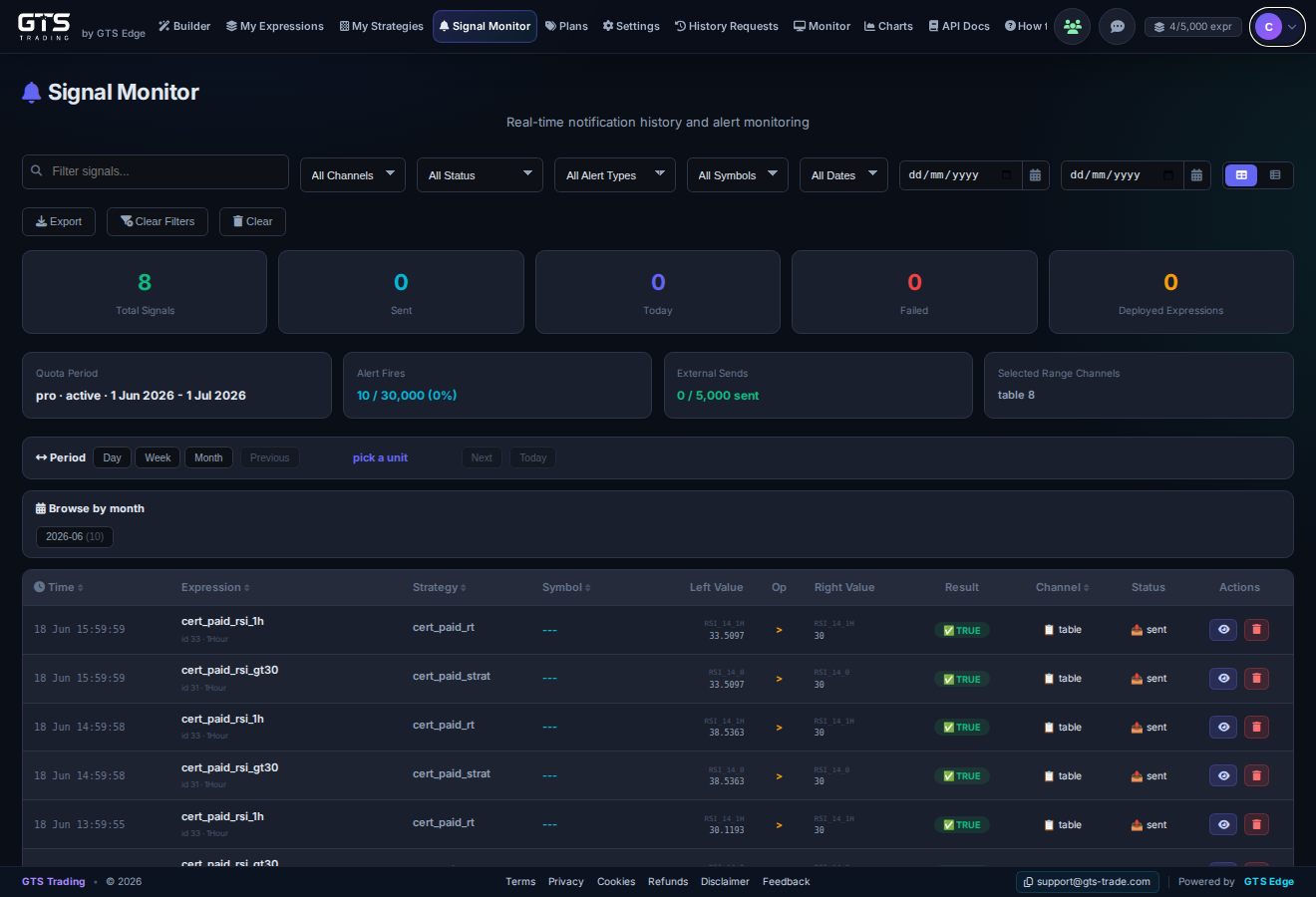 🖼️Signal Monitor feedscreenshot: live fires list
Q How do I make something alert-only / report-only (no trade)? ▶
Choose a handler action that notifies but never issues an order. In strategy terms this is a report/alert-only handler — it reports the fire and stops there, so no position is opened even on a real account.
Q How do I pause or stop an alert? ▶
Un-deploy / stop the strategy that carries the expression (from My Strategies or Monitor). The expression stays saved in your library; it just stops evaluating.
4 Strategies, handlers & positions
A strategy is the per-symbol runtime entity that owns handlers, trading parameters, risk management, and reporting. Handlers emit signals; the strategy decides what those signals mean using the user-set parameters. It can trade, close dynamically, report account state, or run alert-only with no position created.
Q How do I build a strategy? ▶
- Open Builder → Strategy & Handler.
- Pick the symbol. The timeframe is derived from the expressions you select — a default is used only if it can’t be derived.
- Add the handlers you need: open buy, open sell, close buy, close sell, or alert-only/no trade. Any operation can be left empty.
- Set the strategy-level parameters: units, max open positions, SL/TP, trailing, hedging, limits, and reporting/alert behavior.
- Name and Save it — it appears under My Strategies.
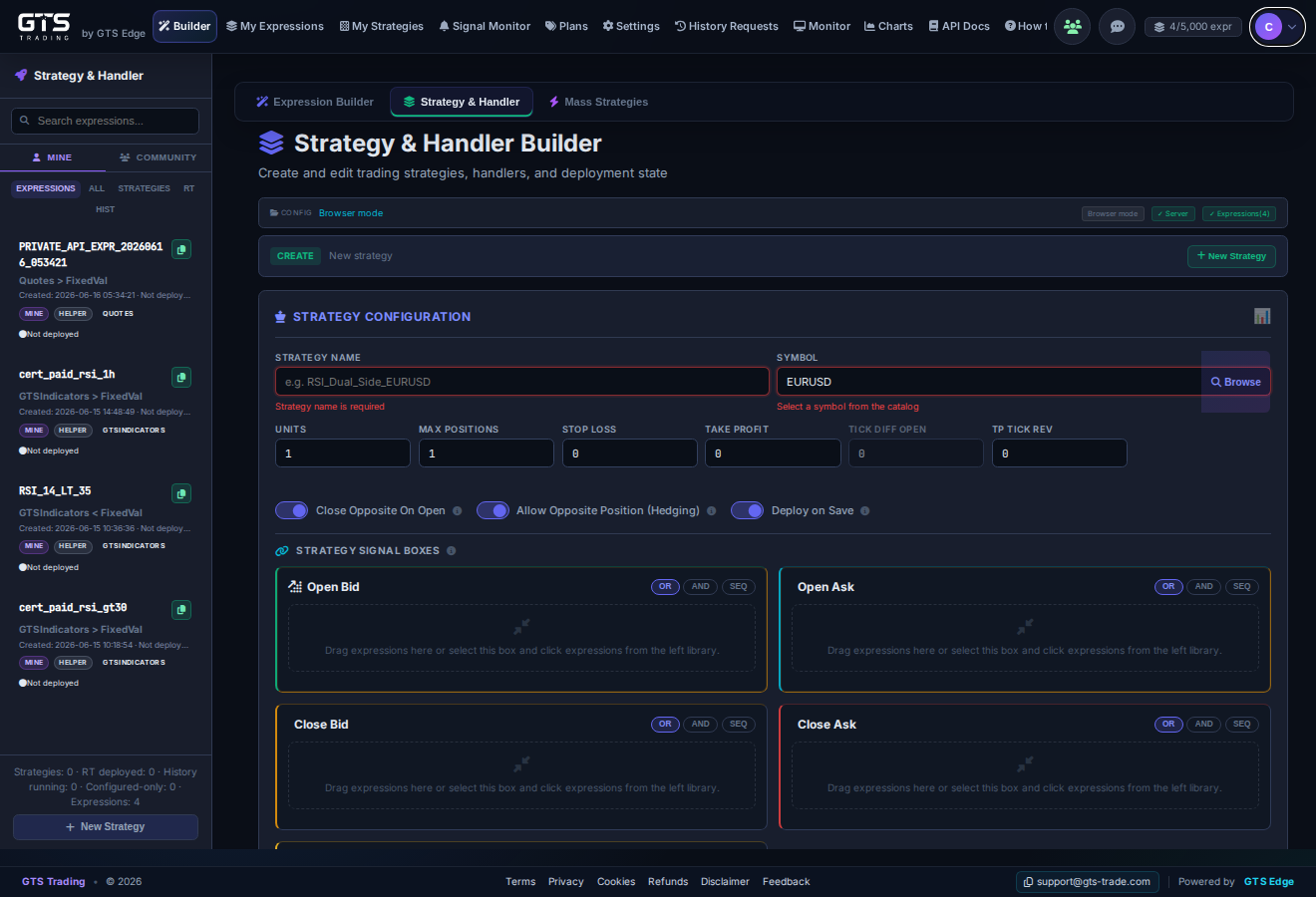 🖼️Strategy & Handler builderscreenshot: Strategy & Handler sub-tab
Q How do I view / inspect a strategy? ▶
Open My Strategies to see your library. Each strategy shows its symbol, timeframe, the expressions it uses, its handlers, and its current status (saved / deployed). Click one to inspect the full definition.
The strategy library has source tabs so you can also browse strategies that aren't hand-built:
- Config — your own saved strategies.
- Community — strategies shared by others.
- Permutation — strategies generated by a Mass / permutation session.
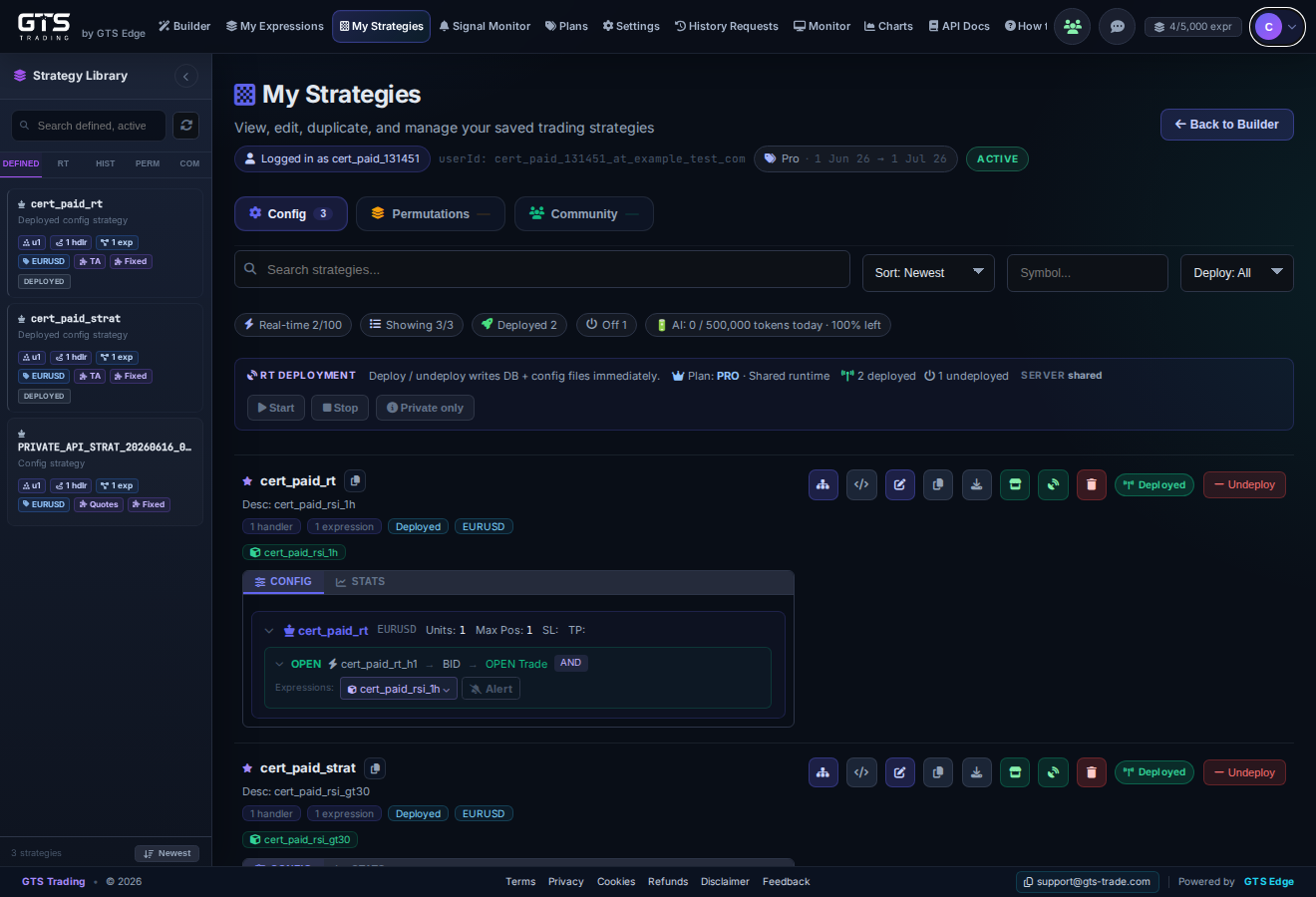 🖼️My Strategies libraryscreenshot: strategy list with Config / Community / Permutation source tabs + status
Q How do I edit or duplicate a strategy? ▶
- From My Strategies, open the strategy and choose Edit — it loads back into the Strategy & Handler builder.
- Change the symbol/timeframe, swap the arm expressions, or adjust the strategy parameters (position size, SL/TP, hedging, trailing).
- Save to update it.
To experiment without touching the original, Duplicate it first and edit the copy.
Q How do expressions drive a strategy? (the 5 handler modes) ▶
This is the key idea. A handler watches its inner expression list and the relation between those expressions (for example AND / OR / sequence). When that handler evaluates true, it emits the signal/action configured on the handler.
| Handler mode | What happens when its expression relation is true |
|---|---|
| Open Buy | Emits an open-buy signal and, on a paper trading strategy, opens the buy-side position. |
| Open Sell | Emits an open-sell signal and, on a paper trading strategy, opens the sell-side position. |
| Close Buy | Emits a close-buy signal and closes the buy-side paper position when one is open. |
| Close Sell | Emits a close-sell signal and closes the sell-side paper position when one is open. |
| Alert only / no trade | Emits a signal/notification only. No position is created or closed. Use this for account alerts, report handlers, and strategies that should fire without trading. |
You map saved expressions into the handler, choose the relation between them, then choose the handler mode. The rule is identical for all modes: when the handler expression relation evaluates true, that handler emits its configured signal/action. Alert-only is a real handler mode, not a trading operation.
- Open Builder → Strategy & Handler.
- Add the expressions the handler should watch and choose the relation between them.
- Choose the handler mode: open buy, open sell, close buy, close sell, or alert-only/no trade.
- For trading modes, set the strategy trading controls. For alert-only handlers, configure notification/report behavior and Save.
 🖼️Handler modesscreenshot: Open Buy / Open Sell / Close Buy / Close Sell / Alert-only handler options
Q How does a position get opened? ▶
You don't open it by hand — the engine does it for you. That's the whole point of algotrading: the strategy triggers the position automatically when your condition becomes true. There's no manual "buy" step.
- Put your entry expression in the Open Bid or Open Ask arm (whichever side you want).
- Deploy the strategy to a trading account.
- When that arm's expression evaluates true, the engine opens the position automatically — on the GTS paper-trading account (no real order is ever placed).
How big, and with what risk controls, is decided once at the strategy level — position size, SL/TP, hedging, trailing — not on the arm.
0.01 units) may be needed — set the strategy size accordingly and check your symbol's minimum.Q How do I close a position? ▶
Closing works exactly like opening — you just use the Close Bid / Close Ask arms instead. Any expression you set in a close box can trigger the close; there is no special "exit expression" type.
- Put the condition you want to close on (e.g.
RSI(14) > 70or an account-P&L condition) into the Close Bid or Close Ask box. - When that expression evaluates true, that side's position is closed automatically.
Because it's the same mechanism as open, you can close the bid side and the ask side dynamically and independently, each by whatever expression you choose. (Strategy-level SL/TP and trailing also close positions automatically — those are set once on the strategy, separate from the close arms.)
Q What are Mass / Permutation strategies for? ▶
The Mass Strategies tab generates many strategy permutations at once: expression-handler wiring, symbol/range sets, and parameter sweeps such as RSI thresholds, SL/TP, units, or other user-defined variables. It is how you test a whole grid of ideas instead of building each strategy by hand.
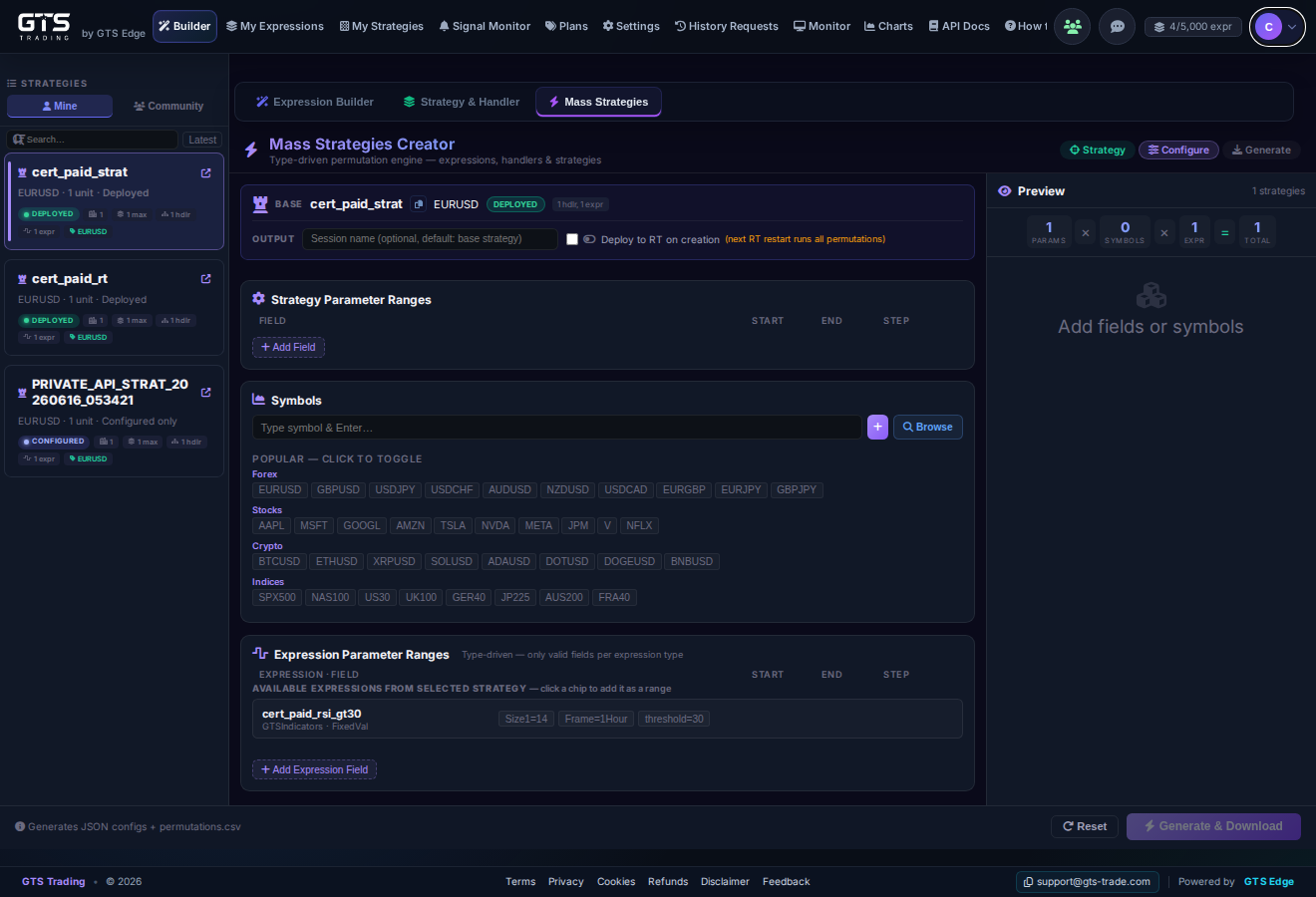 🖼️Mass Strategies tabscreenshot: permutation builder
Q How do I manage risk and more than one position? ▶
A strategy is not one position. Max Positions lets it hold several at once, and every one of them is governed by the same strategy-level risk settings — you set the rule once, it applies to position 1 through position n.
The strategy-level fields (Builder → Strategy & Handler):
| Field | JSON | What it does |
|---|---|---|
| Units | Units | Size of each position. 0 loads the strategy but places no trades — valid for alert-only. |
| Max Positions | MaxNumPositions | How many positions this strategy may hold at the same time. 1 = single position; higher = a ladder. |
| Stop Loss | StopLoss | Fixed stop applied to every position the strategy opens. |
| Take Profit | TP | Fixed target, same deal — one setting, every position. |
| TP Tick Rev | TPTickRevVal | Reversal close: give back this many ticks against your direction and the position is closed. Requires TP > 0 — saving it without a target is rejected. |
| Tick Diff Open | DiffTicksFromLastOpen | Minimum distance from the last entry before another position may open. Only meaningful when Max Positions > 1. |
These numbers are in ticks. The engine measures the move as (price − open price) / tip, so Stop Loss, Take Profit and Tick Diff are all tick counts — which is what makes one setting portable across instruments. (The engine also supports a percent mode for the same thresholds, but it is not exposed in the builder or the API today, so what you set here is ticks.)
If you want a percent stop or target instead, express it as a close handler on LastOpenPositionObject.CurrentProfitPercent — that field is already a percent of the position's own open price, and it works on both sides.
Spacing the entries (using the distance between positions)
Tick Diff Open is the built-in version: price must travel N ticks away from the last entry before the next one opens, which stops a ladder from dumping all its positions on one candle. For anything more specific, build the distance yourself as an expression and put it in the Open handler — e.g. the live price against LastOpenPositionObject.OpenPrice, converted to ticks with Symbol.TicksInPoint, so the spacing rule holds on every symbol.
Closing on any expression you can build
SL/TP are the fixed floor and ceiling. Everything else is an expression in a close handler — Close Bid (CloseHandler1) and Close Ask (CloseHandler2). Whatever you can express, you can close on:
- Profit in percent —
last_pos_currentprofitpercent < 0.1closes when the position gives back below 0.10%. Positive always means winning, for BID and ASK alike, so one expression covers both sides. - Profit in ticks —
last_pos_currentprofitticks > 50. - Age —
last_pos_currentdurationminutes > 60for a time-based exit. - Anything else — a pattern, a trend flip, a channel break: if it saves as an expression, it can close a position.
CurrentProfitPercent < 0.1 is already true the moment it opens and would close it immediately. For a real "dropped below" rule, pair it with proof the position got there — the peak (unary MAX) at or above your level, AND the current value under it. MIN will not do this: it reports the worst point, which never shows that profit had risen.Worked example — a percent take-profit and stop, on both sides
Two expressions, each saved once, then dropped into both close boxes with OR. Because the percent field is signed by side, the same pair governs the long and the short:
| Expression | Quick Create | Does |
|---|---|---|
POS_TP_0_2 | profit_percent >= 0.2 | Target — position is up 0.2% of its entry price |
POS_SL_0_2 | profit_percent <= -0.2 | Stop — position is down 0.2% |
Close Bid = POS_TP_0_2 OR POS_SL_0_2. Close Ask = the same two. Set Stop Loss and Take Profit to 0 if this pair is the only exit you want, and remember nothing else will take you out.
..._LTE_MINUS_0_2 can still be built with >= — the suggested name stops tracking the builder once it has been edited by hand. Get this one backwards and the stop reads profit >= -0.2, which is true at entry (profit starts at ~0), so the OR is always true and every position closes the instant it opens. Open the expression and confirm the operator button before deploying.What to read when deciding
| Operand | Answers |
|---|---|
| LastOpenPositionObject | The most recent open position — profit in ticks or percent, duration, open price, side, units. |
| StrategyOpenPositions | The whole open collection — TotalPositions, TotalUnits, AverageOpenPrice, OpenPNL, optionally per side. Use it to decide whether to add another rung or close the book. |
| ClosePositionObject | The last closed position — realized profit, close price, duration. Use it to decide whether to re-enter or stand down after a loser. |
| AccountObject / AccFrameObject | Account-level metrics (balance, open PnL, equity, per period). Use these as the global gate — stop opening anything once the account is down for the day. |
These are ordinary operands, so they combine with AND/OR like any other condition: add a rung only while fewer than 3 are open AND the account's open PnL is above −500.
Q How do I deploy a strategy? ▶
- From My Strategies (or the builder), choose Deploy.
- Confirm. It begins evaluating on live data; opened/closed positions and alerts appear in Monitor.
Q How do I stop / undeploy a strategy? ▶
- Go to My Strategies or Monitor and find the running strategy.
- Choose Stop / Undeploy. It stops evaluating live data and stops issuing alerts/orders.
The strategy definition stays saved — you can re-deploy it later. Undeploying is the safe way to pause something that's misbehaving.
Q Why is my strategy limited when a real exchange is active? ▶
Because GTS never places live orders, a strategy running against a real-mode exchange may only use account-monitoring expressions (e.g. account balance, margin, open P&L). There are no buy/sell orders to place on a real account — only metrics to watch and alert on. A safety guard at deploy time enforces this. Common causes of a block:
- The strategy uses trade/entry expressions that aren't valid against a monitor-only real account.
- The provider isn't connected, has no valid credentials, or isn't Set Active.
- The strategy bundle didn't pass validation (missing handler/expression pieces).
Want order-opening behaviour? Run on the default GTS paper-trading account — paper execution has no such restriction. Use real-mode providers for monitoring + alerting on your actual account.
Q How do I delete a strategy? ▶
- If it's deployed, stop/undeploy it first (see above).
- From My Strategies, choose Delete on the strategy.
Q How do I create and control strategies remotely via the API? ▶
Everything in the Strategy builder is available programmatically with your API key:
| Action | Endpoint |
|---|---|
| Create / save a strategy | POST /api/v1/strategies |
| List your strategies | GET /api/v1/strategies |
| Save a strategy + handler | POST /api/v1/strategy-handler |
| Get the strategy JSON schema | GET /api/v1/strategy-schema |
| Duplicate | POST /api/v1/strategies/copy |
| Delete | POST /api/v1/strategies/delete |
| Deploy (one / many) | POST /api/v1/deploy · /deploy-batch |
| List deployed strategies | GET /api/v1/deployed |
Full request/response shapes and auth scopes: API Docs.
/api/v1/strategy-schema, give it to an AI model, and have it generate a valid strategy JSON you POST straight to /api/v1/strategies — the same pattern as expressions.5 Monitoring & history
See what's firing now, and test how a strategy would have behaved in the past.
Q How do I see my live strategies and fired signals? ▶
Two views:
- Signal Monitor — database-backed alert-fire tables/feed for live conditions and strategies, including delivery status and channel results.
- Monitor — the deep operational view: running strategies, open positions, P&L, status.
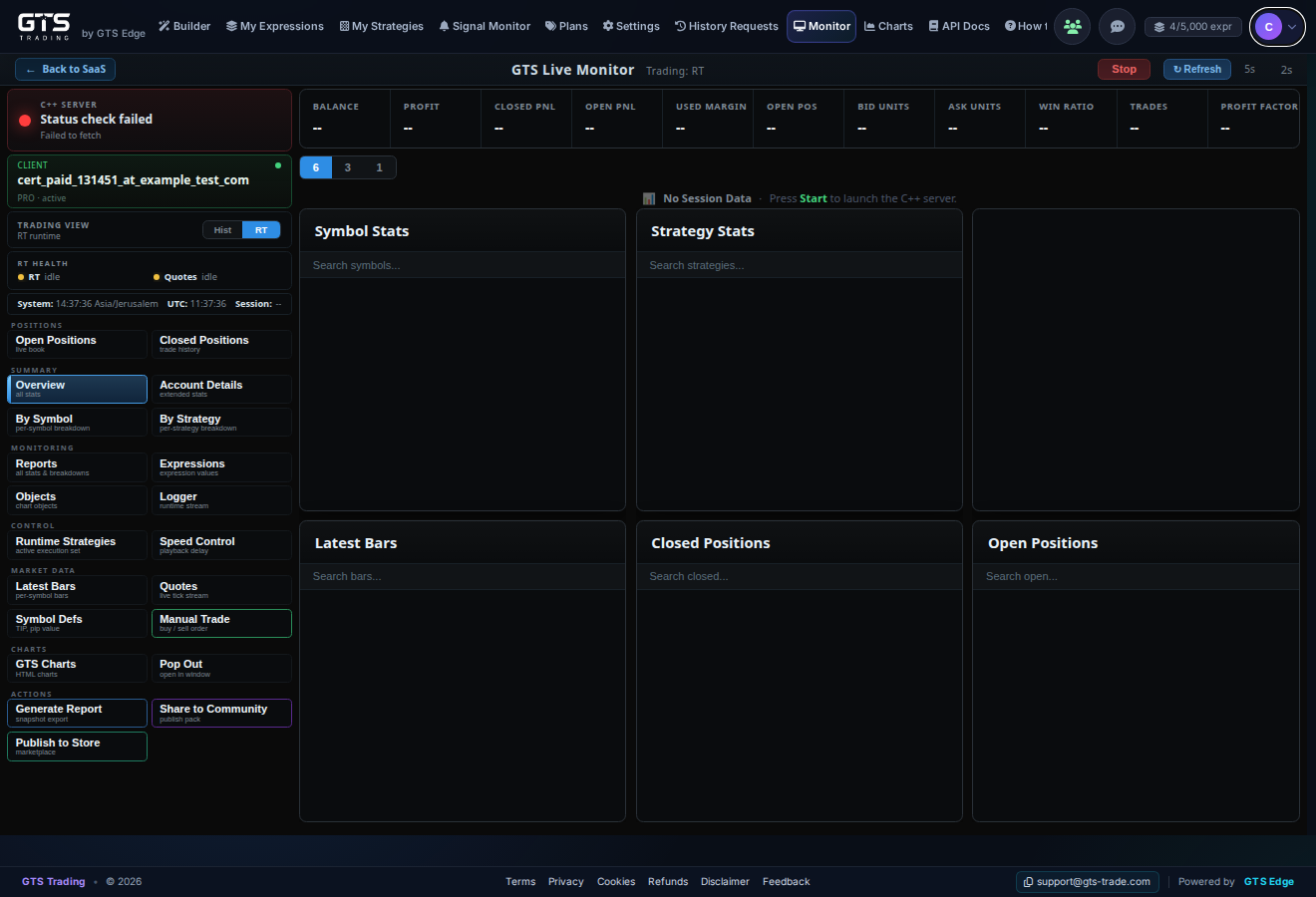 🖼️Monitor pagescreenshot: running strategies + positions
Q How do I run History Requests and read the results? ▶
- Open History Requests.
- Select one or many strategies to test, including Mine / Community strategies or generated permutation packs.
- Set the allowed history range and run options based on your plan/quota.
- Submit the run. GTS stages the relevant strategy definitions into the history runtime and executes them as a batch. Submit = start, Cancel = stop.
- Watch status, then open the reports to compare trades, signals, PnL, win rate, profit factor, drawdown, and top permutations.
Q How do I view Charts? ▶
Open Charts from the nav for price charts, or SEC Edgar for company filings/fundamentals research. These are read-only research tools — they don't change your strategies.
6 Quotas, limits & plans
Every plan has limits. The good news: the app shows them to you right in the header.
Q How do I know my quota? ▶
Look at the top-right of the header — it shows live counters, e.g. 8 / 100000 saved and 2.4k / 100k fires. The kinds of quota:
| Quota | Where to see it |
|---|---|
| Saved expressions/strategies | Header X/Y saved counter. |
| Configured expression alerts | A separate limit from the one above — how many saved expressions you may wire up as live alerts. |
| Signal fires | Header X/Y fires counter. |
| AI tokens | Under the Generate-with-AI box (0 / 1,000,000 used on the max plan). |
| History runs | On the History Requests page. |
| Full breakdown | Account → Usage tab. |
Q What are the Plans and what does each include? ▶
EMA(50) crossed EMA(200) saves three — the previous-bar leg, the current-bar leg, and the AND combiner. A calculated threshold is similar: a getter for each input, one for the difference, one for the comparison. On a small plan a single compound rule can consume most of the saved-expression allowance, so count the parts, not the rules. See value getters and the seven-route example.Open the Plans page from the nav to compare tiers and what each unlocks (limits on saved items, fires, AI tokens, history runs, real-account trading, API access). Upgrade/downgrade from there or the Account → Billing tab.
AI tokens — what each plan includes
Every paid plan comes with a free daily AI-token allotment that resets each day (a per-plan staircase — higher tiers get more, up to 1,000,000/day on the max plan). The Free plan includes no AI tokens, so use the always-free Quick Create there. Tokens are spent only by Generate with AI and in-app AI JSON generation — never by Quick Create, hand-building, or pasting your own JSON.
Need more than your daily amount? Upgrade to a higher plan or wait for the daily reset. The live Plans page shows the exact daily amount for each tier.
Q What happens when I hit a limit or downgrade? ▶
If you exceed a cap (or drop to a smaller plan), over-cap saved items aren't deleted — they're archived to a "Previous-Config" area and retained (90 days). Your live items keep working up to the new cap.
Q How do I upgrade or restore archived config? ▶
- Upgrade your plan from Plans or Account → Billing.
- Open the Previous-Config tab to review archived items.
- Restore the ones you want back into your active library (within the 90-day window).
7 Settings, account & deletion
Q What is the Settings page for? ▶
Settings is where you configure the operating environment around your strategies and alerts:
| Tab | What it controls |
|---|---|
| Channels | Notification delivery: Telegram, email, Discord, browser push, HTTP/webhook endpoints, and related channel credentials. |
| Providers | Broker/data-provider credentials, demo/real mode, and which provider is active for account monitoring and supported runtime operations. |
| API Key | Agentic access for Codex, Claude, IDE scripts, CI, or external services using /api/v1. Treat the key like a password. |
| Runtime Limits | Static risk-management limits saved before the runtime starts: per-account, per-symbol, and per-strategy caps for units, positions, loss, margin, and minimum balance gates. |
Q How do I connect an exchange, and what does it do? ▶
Open Settings → Providers. Supported providers: Bybit, FXCM, Binance, OANDA. Credentials are stored per-user.
- On the provider you want, click Configure and enter your API credentials. Pick the mode: Demo or Real (Run Mode).
- You must explicitly turn it on — flip Set Active on that provider's card. (Set Active stays disabled until valid credentials are saved.)
- Only one provider is active at a time — activating one switches the others off. Turning the active one off returns you to the GTS default stream + paper trading.
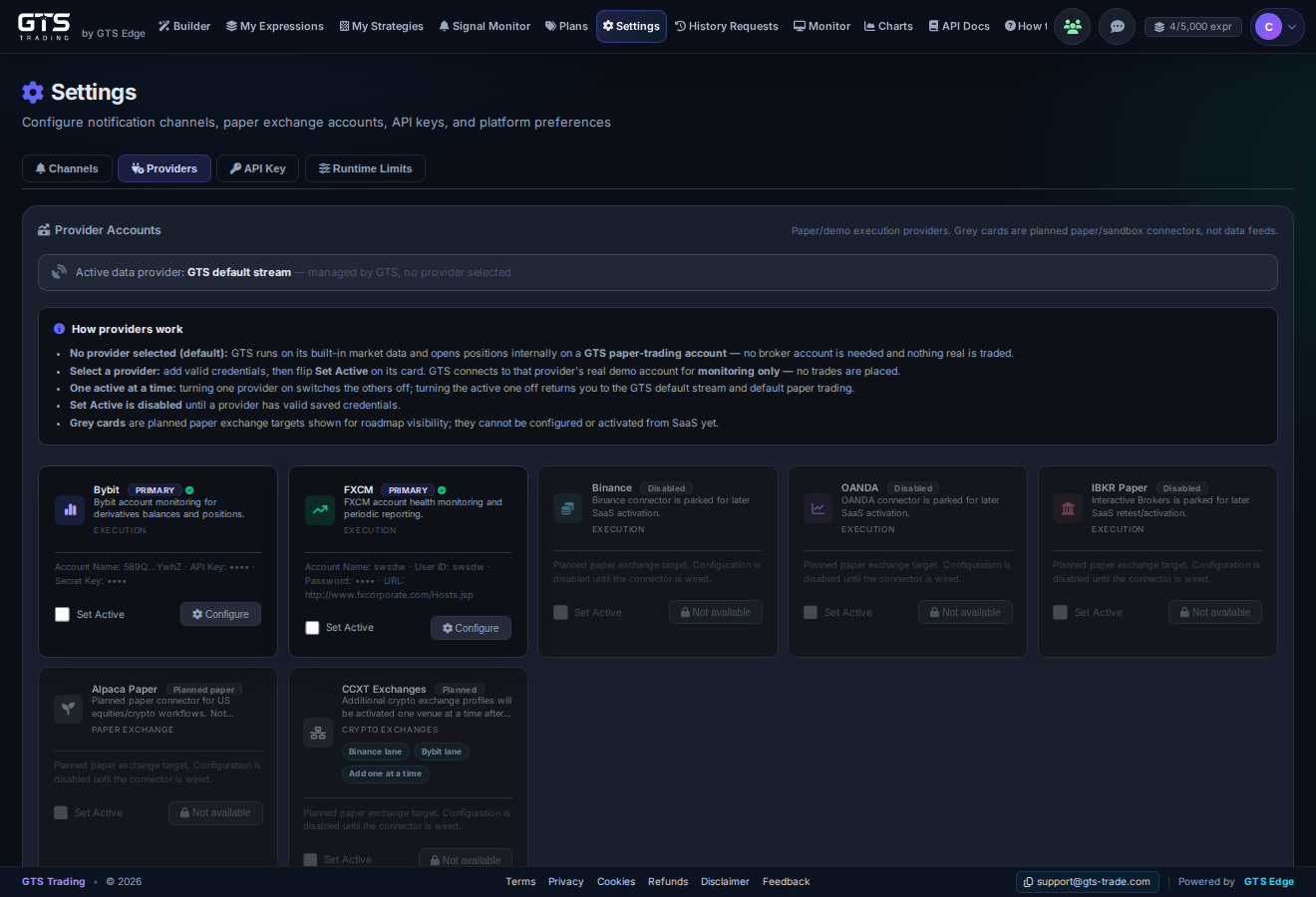 🖼️Settings → Providersscreenshot: Bybit / FXCM / Binance / OANDA cards with Configure + Set Active
EnableLiveTrading="False" for real broker accounts and coerces every handler to alert-only, and the engine refuses to publish an order while that flag is off. Automated execution happens on the paper account only.
The single exception is a manual trade you issue yourself from the Manual Trade dialog or the trade API — that is a deliberate, per-order action, and in real mode it must be explicitly confirmed. A manual real-mode order places a live trade with real funds at risk. Nothing automated will ever do this for you.| Mode | What happens |
|---|---|
| No provider (default) | GTS default stream + GTS paper-trading account. Strategies open/close positions internally. Nothing real. |
| Provider — Demo mode | Live trading on the provider's demo account — strategy-automated or manual — plus monitoring & alerts. No real funds at risk. |
| Provider — Real mode | Monitoring & alerts on balances/P&L, plus manual buy/sell orders you issue and confirm yourself (real funds at risk). Strategies are alert-only on a real account — automated orders are blocked at deploy. |
Q How do I manage my account, security, and billing? ▶
Click your avatar (top-right) to open Account. Tabs: Overview, Usage, Security (password / sessions), Billing (plan / invoices), and History.
Q How do I delete an expression, a strategy, or my account? ▶
- Expression / strategy — use the 🗑️ delete icon in its library list.
- Deployed strategy — stop/un-deploy it first (Monitor / My Strategies), then delete.
- Your account — Account → Security/Billing, or contact support@gts-trade.com.
Q How do I use the API? ▶
For terminal, IDE scripts, AI agents, Postman, CI, or another backend, use your personal API key with the versioned /api/v1/* API. Send it as X-API-Key: gts_... or Authorization: Bearer gts_....
Browser session cookies are only for the logged-in website UI and same-site browser JavaScript. They are not the normal CLI/agent integration path.
Open API Docs from the nav for examples to create expressions/strategies, run history requests, deploy, and pull stats programmatically.
8 Troubleshooting
Q My expression won't parse or validate — why? ▶
- Check the
LEFT OPERATOR RIGHTshape — a missing operand is the usual cause. - Candle patterns need a trend and compare
> 0(not== 100). - Decimal indicator params (e.g.
SAR(0.02,0.2)) must use function syntax, not dot-notation. - Still stuck? Try Generate with AI — it validates as it builds — or check the NLP reference.
Q Why is a Community import "blocked / missing deps"? ▶
The shared expression references helper building-blocks that weren't bundled when it was published, so its dependency closure is incomplete. It's a data issue with that shared item, not your account.
Pick a different community item, or rebuild the logic yourself with the four creation methods in §2.
Q My strategy didn't fire or didn't trade — why? ▶
- Not deployed, or deployed to the wrong account (paper vs real).
- The condition simply wasn't true yet on live data — check Signal Monitor.
- Real-account guard blocked the trade — see §4.
- No exit path, so a position opened but never closed (or vice-versa).
- You hit a fires/quota cap — check the header counters.
- The handler is alert/report-only, so it notifies but never trades by design.